The following instructions are based on experience from hundreds of interviews. We realize you may not be able to follow all these suggestions, but the more of them you can follow, the better the technical quality of your interview.
General Computer Instructions
- If your computer is connected to your network wireless, please try to connect it to your router with an Ethernet cable instead. If your router is in a room other than the one in which you’d like to conduct the interview, please consider buying a long Ethernet cable. For MacBook Air’s with no Ethernet port, we can send you an adapter. If you have a MacBook Air, please tell us which of these two photos resembles the sides of it:
Photo #1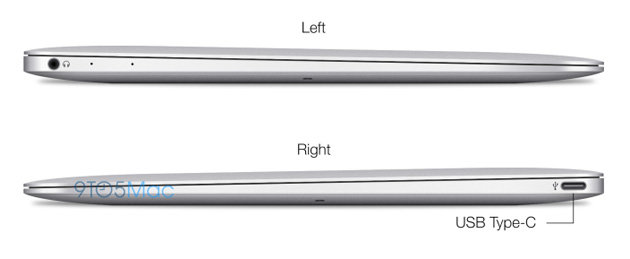
Photo #2
- Be sure you’re using the latest version of Zoom.
- Before the interview, reboot your computer and open only Zoom. This will free up computer memory and prevent email notification sounds.
- Also, if you know how, turn off your wireless connection, or your computer may default to it. The wired connection is much faster, more stable, etc.
Lighting, Noise, etc.
- Have your room fairly well-lit. Light should shine on you from the front rather than from behind. A bright light or window behind you will cause your webcam to overexpose. Try to have both sides of your face equally well-lit.
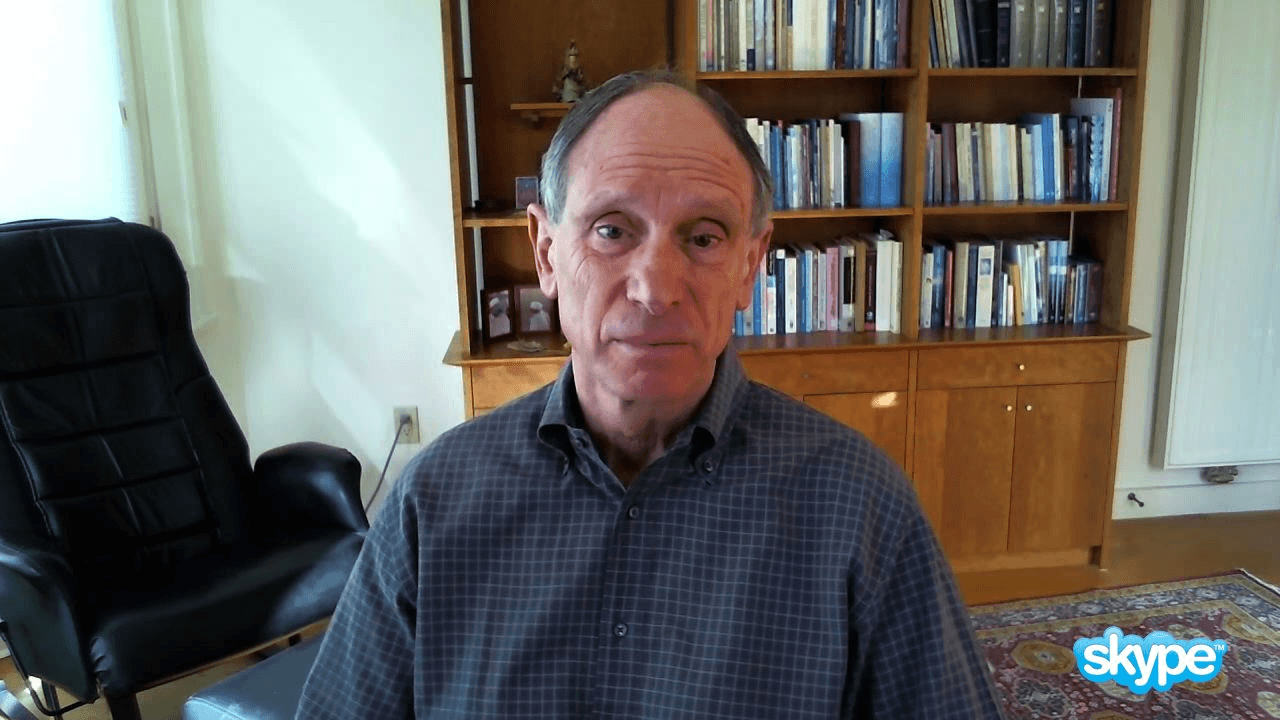
- Try to have a nice backdrop or background behind you, rather than a shiny wall, cluttered office, etc. See examples below.
- Clean your webcam lens with an eyeglass cleaning cloth. Position your webcam at eye level or slightly higher (e.g., on top of your monitor). Don’t position your laptop so that you are looking down at it (and the webcam). If necessary, put something under it so it is closer to eye level.
- Sit close enough to your computer so that your head is nicely framed in the shot: centered, without too much or too little space above it. (For PC users, Logitech software controls allow panning and zooming.)
- Position your Skype window close to the webcam (i.e., the top of the monitor) so that when you are looking at Rick, it will appear as though you’re looking at, and talking to, the viewer.
- Don’t wear all white, black & white, geometric shapes, checked patterns, plaids, extreme stripes, or dramatic herringbone patterns.
- Please turn off cell phones, answering machines, etc.
- Clip the lavalier mic around the heart level, making sure that the mic and the wire will not rub against anything or move around.
- Please do not type on the keyboard during the interview.
- Edit Point – if you feel that you would like to take back something that you have said or change direction, pause and let Rick know. Then start again after the last good sentence. This makes it easier to edit that section out.
- Below are a couple of examples of good or acceptable backgrounds.


 Apple Podcasts
 Spotify
 YouTube